Configuring Employees
Employees (staff) are the people who deliver services. ZimSaas lets you control their schedules, services, and visibility.
If you are the only provider, your admin profile becomes the first employee. Make sure at least one service is assigned to that employee.
Create an Employee
Go to Employees > + Add Employee. You will see five tabs (Special Days requires the feature to be enabled).
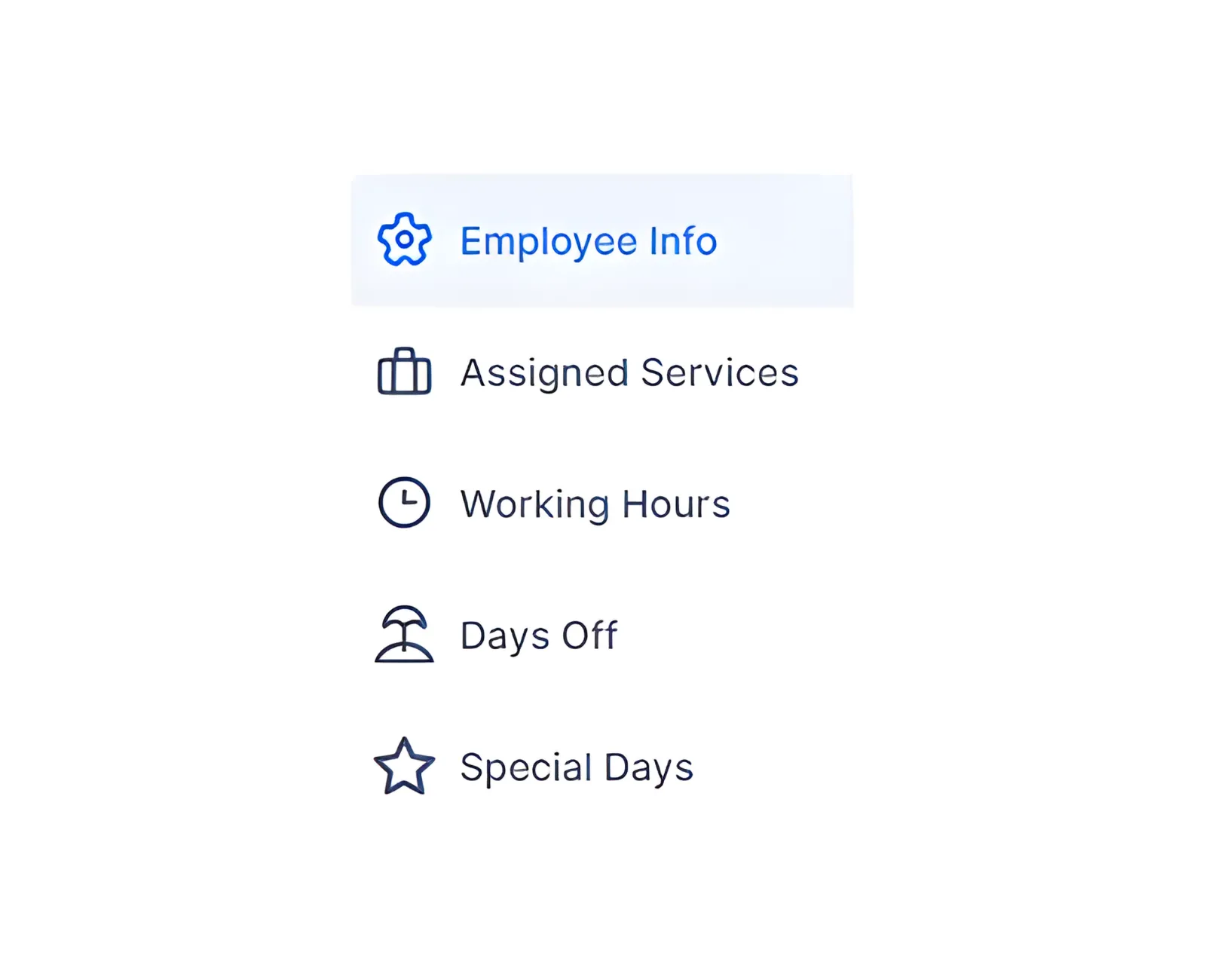
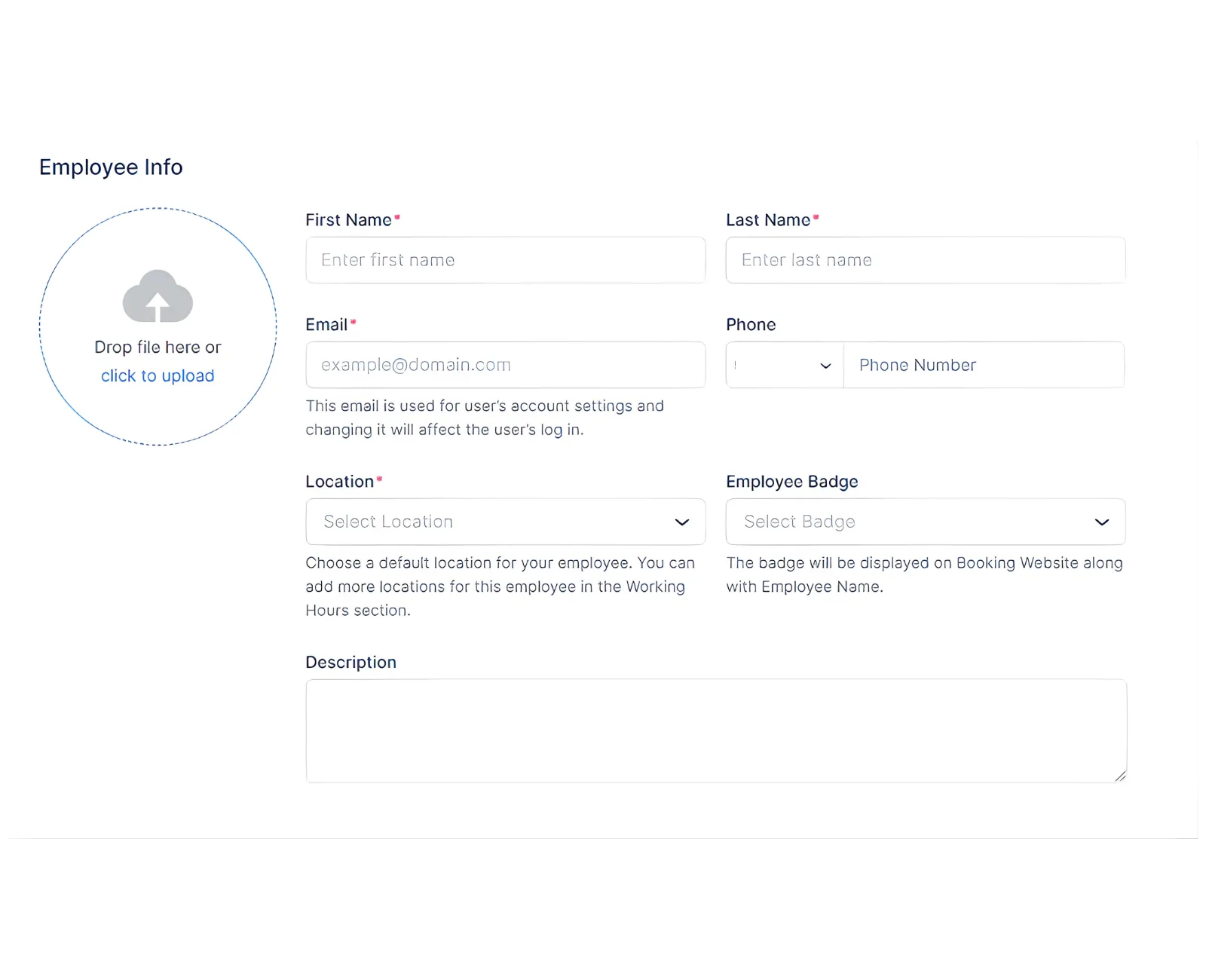
Employee Info
- Profile image
- First name (required)
- Last name (required)
- Email (required and unique)
- Phone (default country code from General Settings)
- Location (if multiple locations exist)
- Employee badge (Best Value, Most Popular, Premium, or custom)
- Time zone (defaults from General Settings)
- Description
If Zoom, Microsoft Teams, or Google Meet is linked, those appear as locations for the employee.
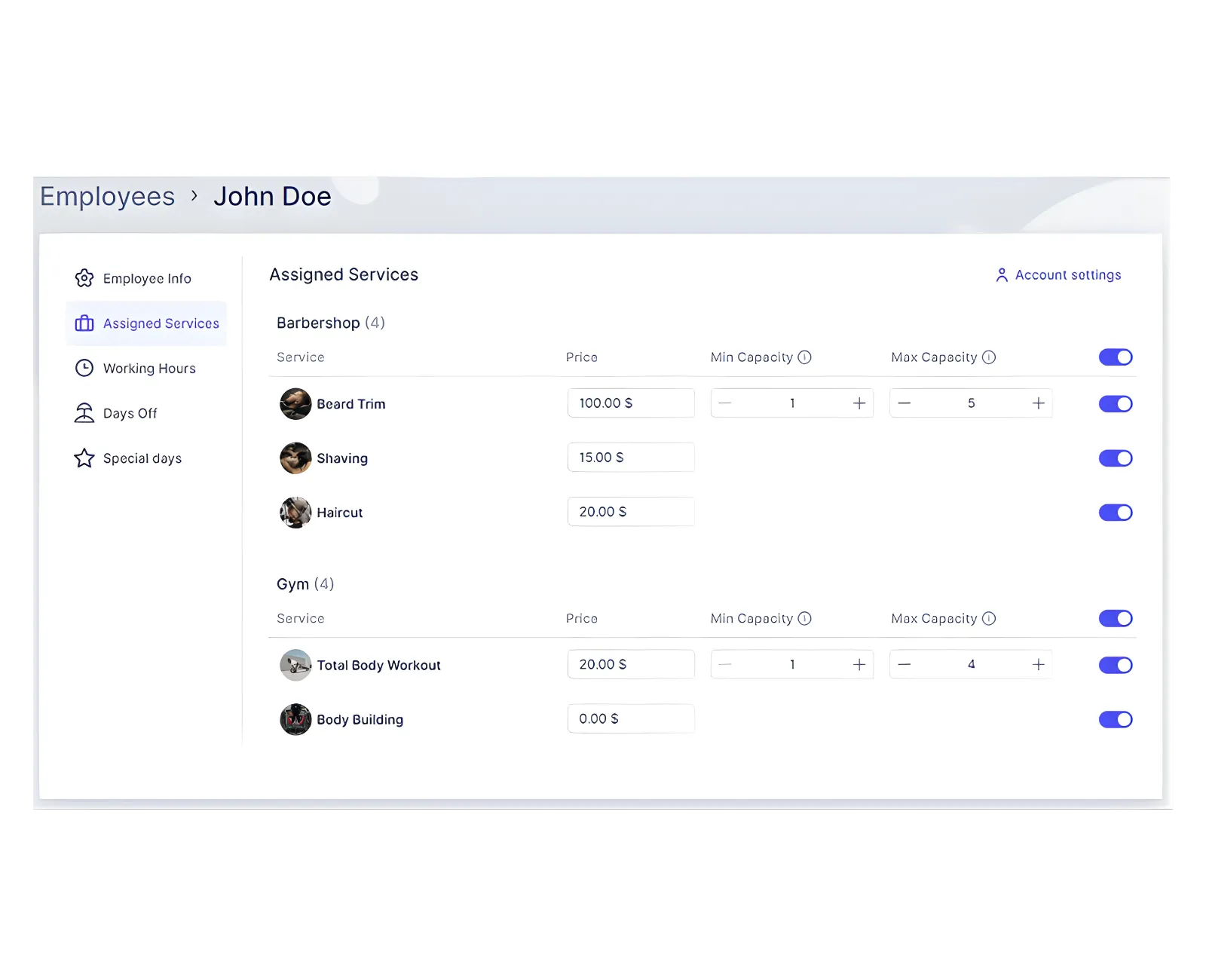
Assigned Services
Enable or disable categories and services for the employee. You can set different prices and capacities per employee. When you change these values, ZimSaas asks whether to apply the changes to all employees or only the selected one.
On the booking website, services with different prices show From with the lowest price. The employee selection step shows price differences with +/‑ indicators.
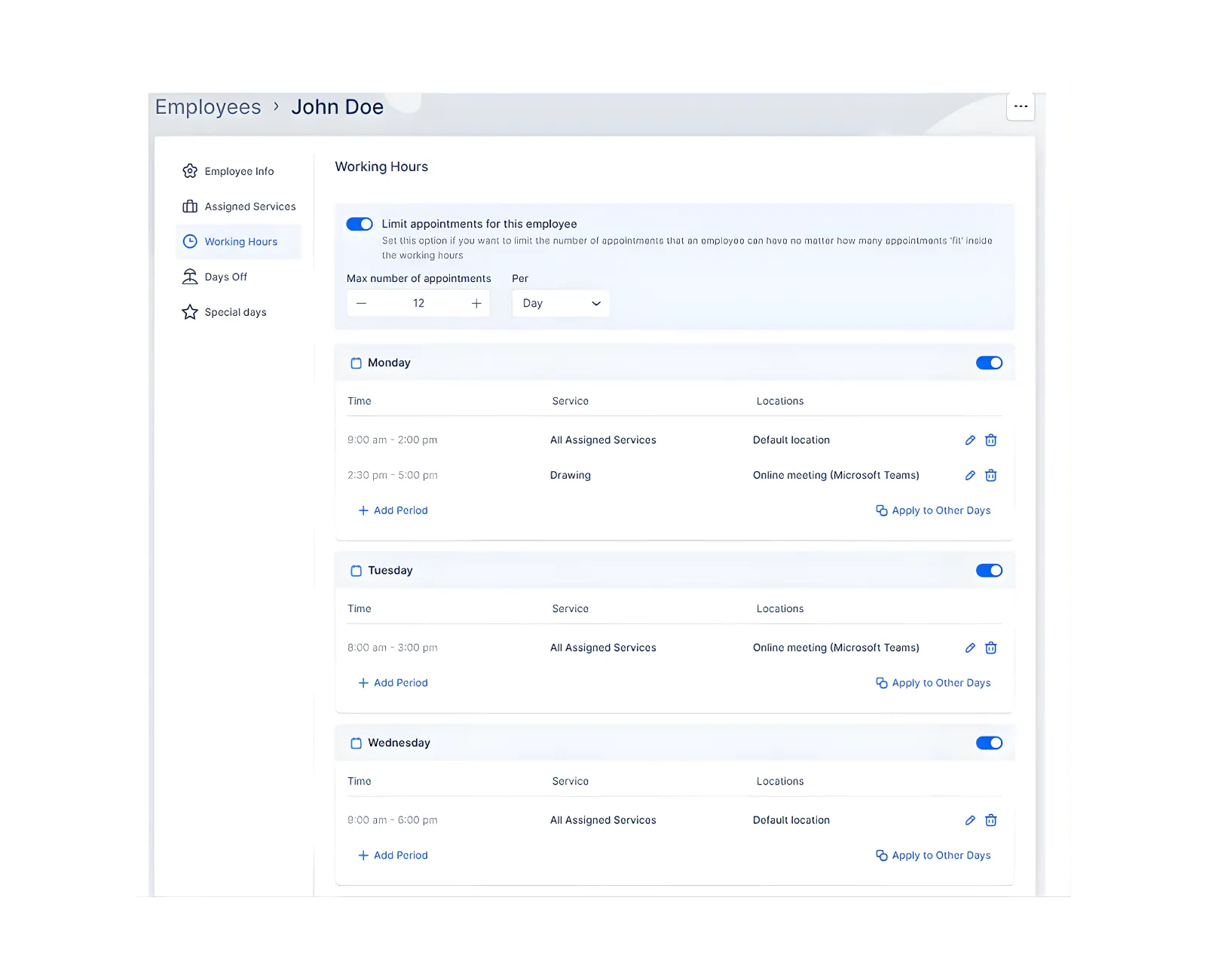
Working Hours
Working hours repeat weekly and default to your Office Hours. You can set daily limits for appointments per day, week, or month.
Common troubleshooting checks:
- Working hours must cover all assigned services and the default location.
- Service duration plus buffer time must fit inside the working period.
To create breaks, add multiple working periods (e.g., 09:00–11:00 and 12:00–15:00).
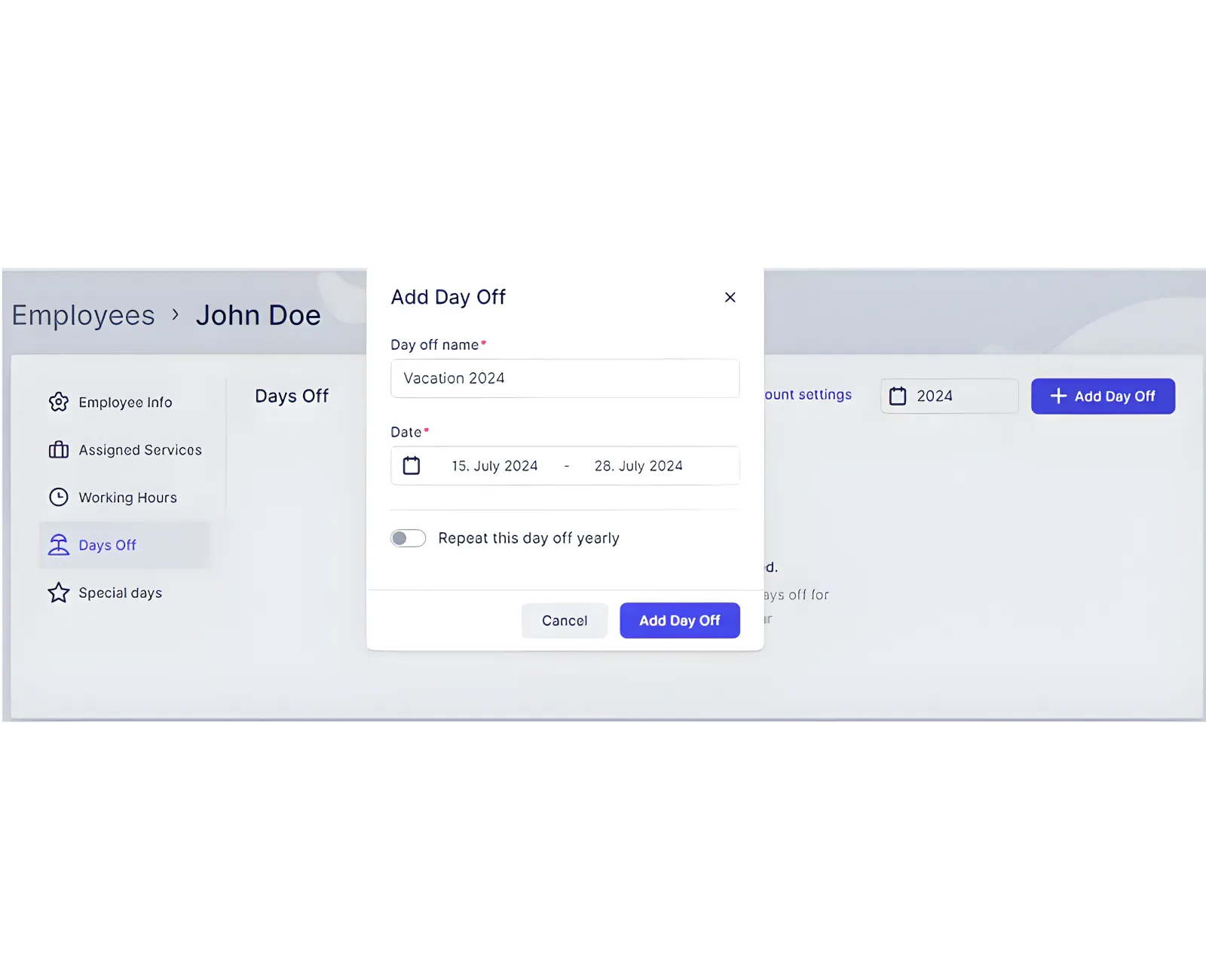
Days Off
Add vacations, holidays, or sick days:
- Click + Add Day Off.
- Name the day off.
- Select a single day or a date range.
- Choose if it repeats annually.
- Save changes.
Special Days
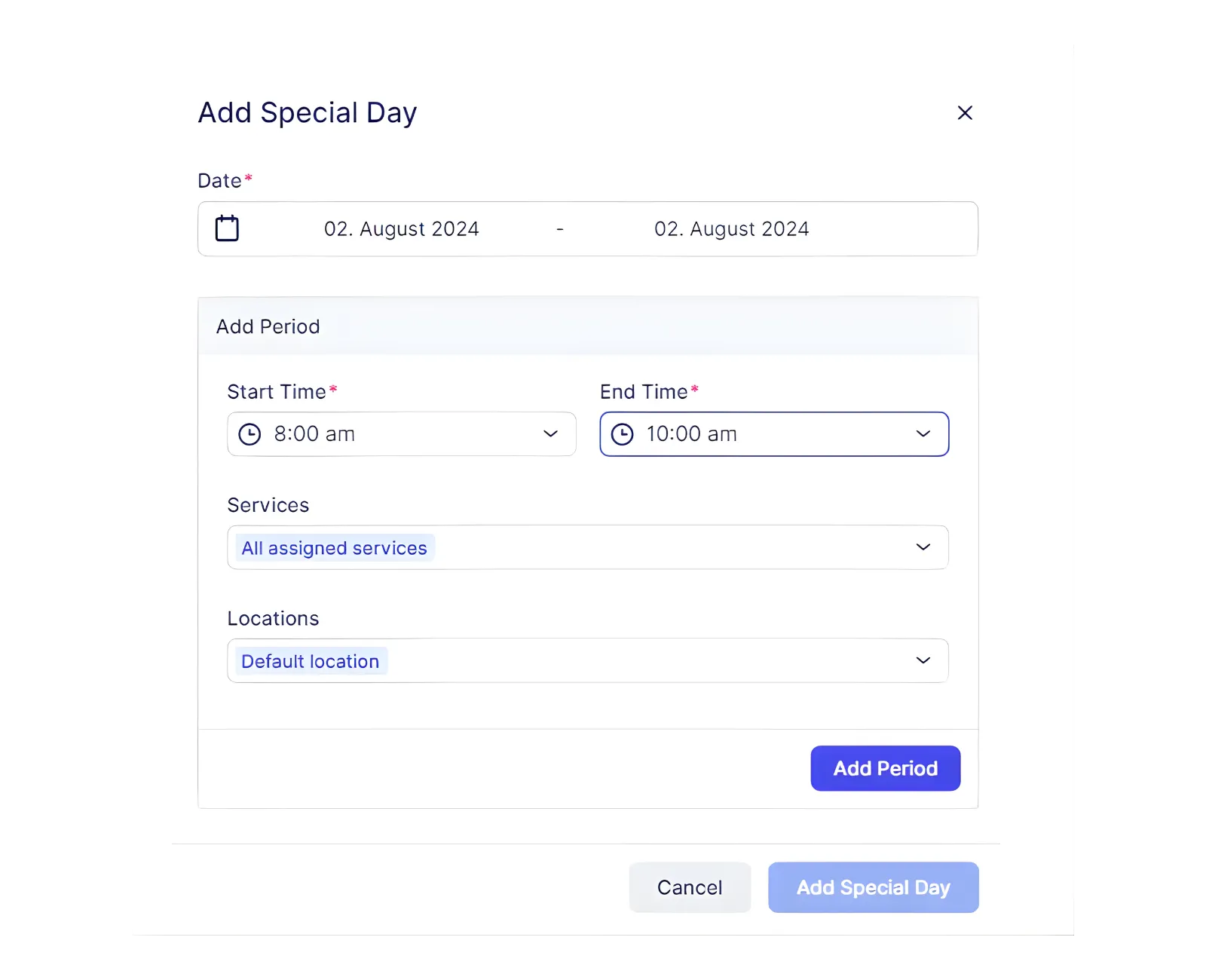
Special Days allow one‑off changes to working hours (for example, leaving early for an appointment). Add each time period in chronological order and click Add Period for each slot before saving.
Related Topics
Need help?
Chat with our team on WhatsApp for setup guidance and troubleshooting.
Open WhatsApp support